Plan meetings across
time zones.
Finding a time that works in Berlin, New York and Singapore shouldn’t take a spreadsheet. Here’s how to do it in four steps with GlobeTempus+ on iPhone, iPad or Mac.
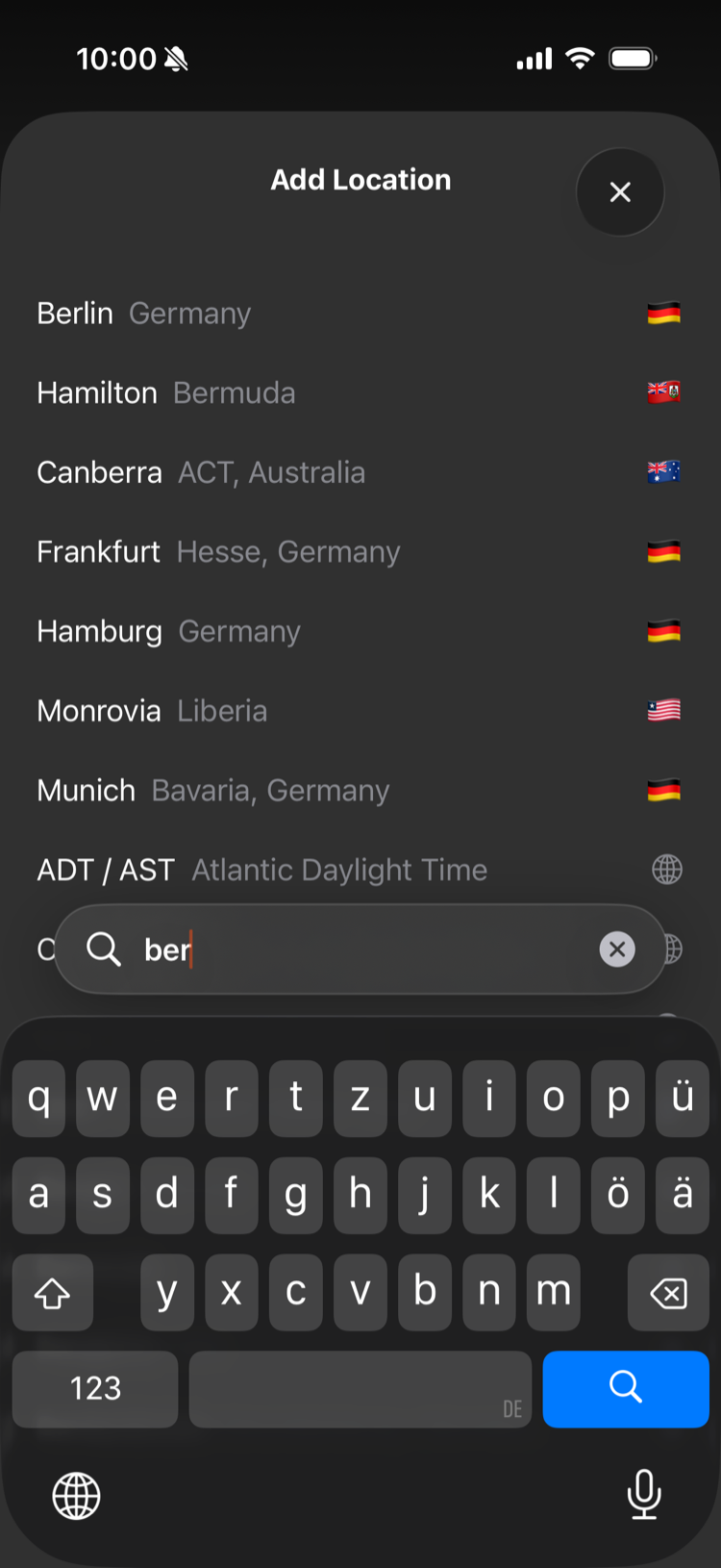
Add the people and places you work with
Add any city or town, then name it after a person, a team or an office: “Kate”, “Brad’s Team”, “Austin Office”. Your own location is always at the top.
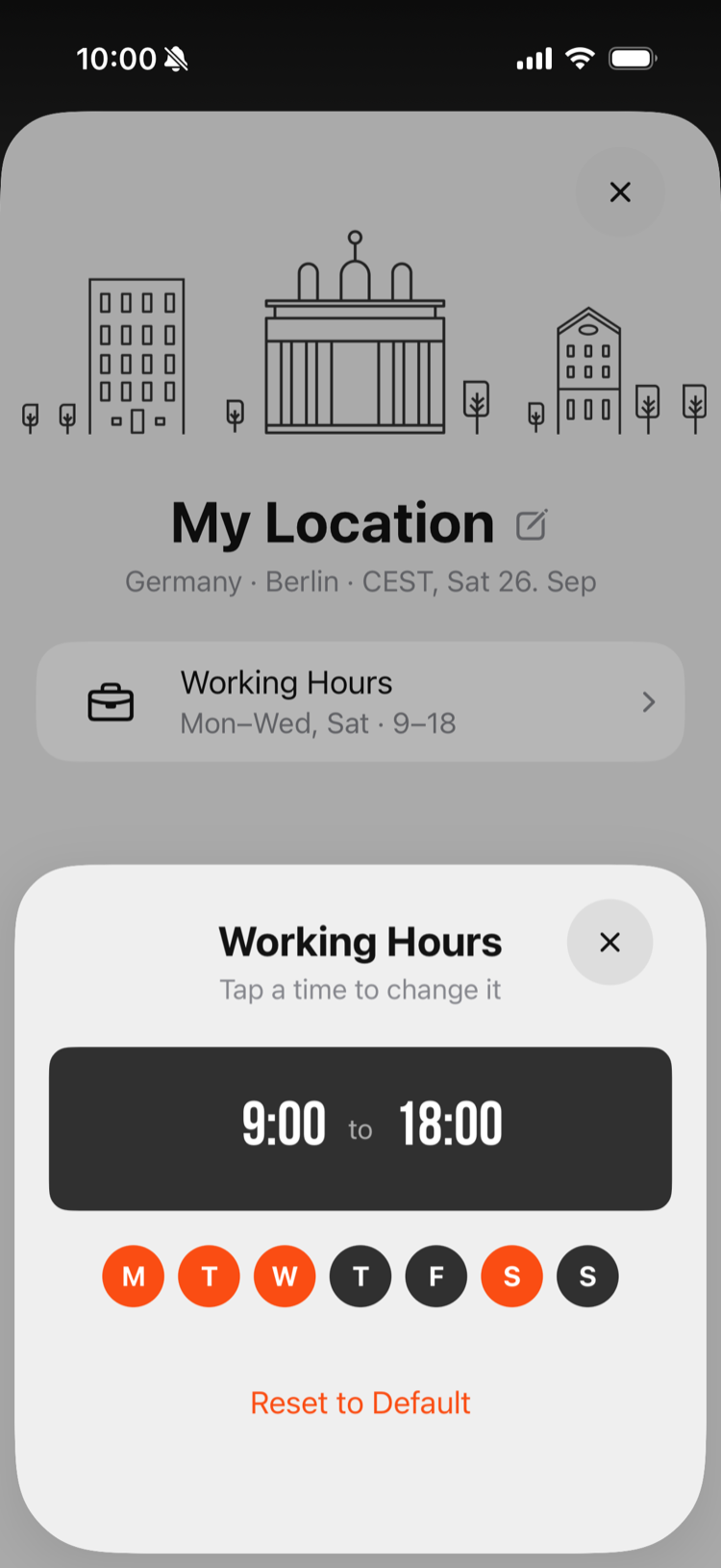
Set their working hours once
Pick working days and hours for each location. A live badge shows who is ACTIVE now or available SOON, so you see the overlap instead of calculating it.
Invite a colleague with People and you also see their busy time on their card — only busy blocks, never event titles.
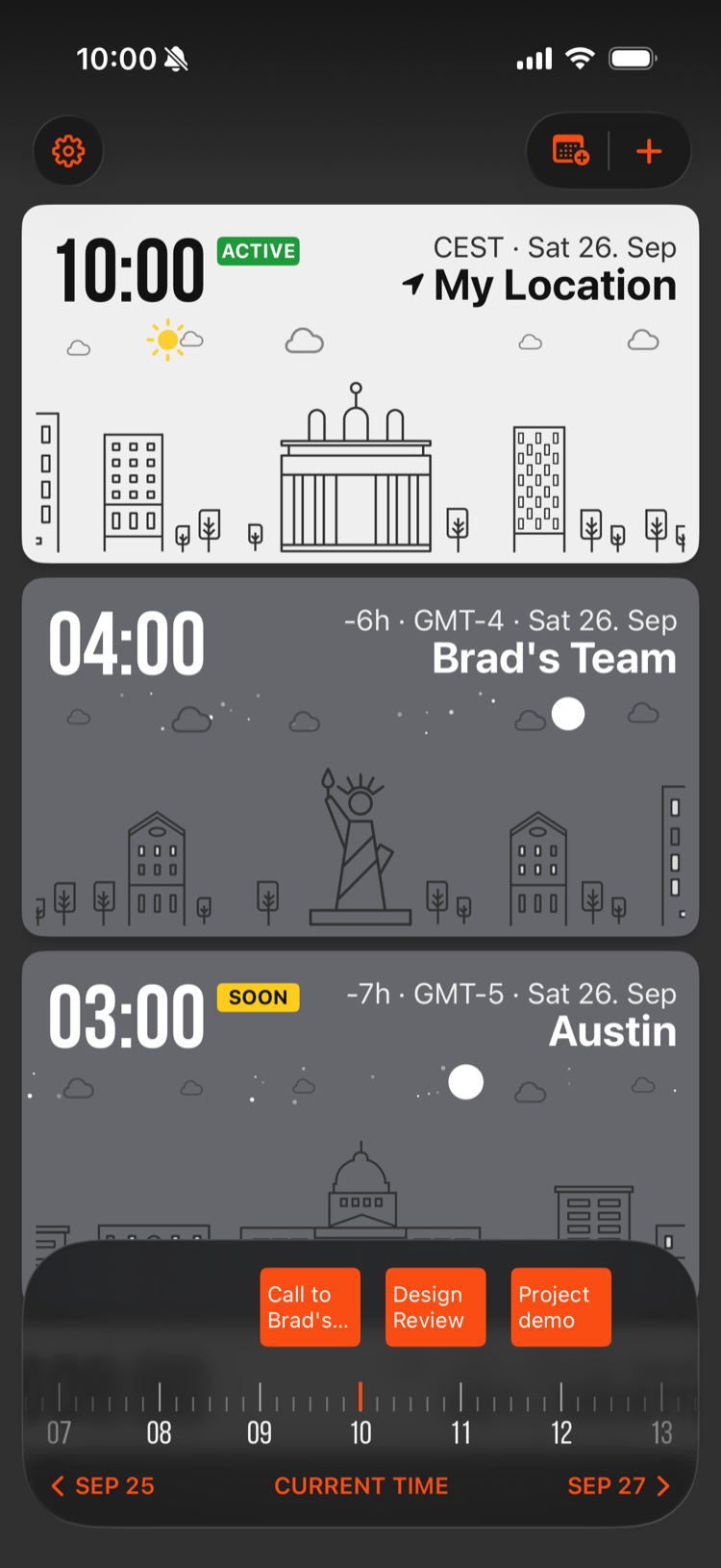
Swipe the timeline to find the slot
Every clock moves together as you swipe through the day, with your calendar on the same timeline. When a time works for everyone, create the event right there.
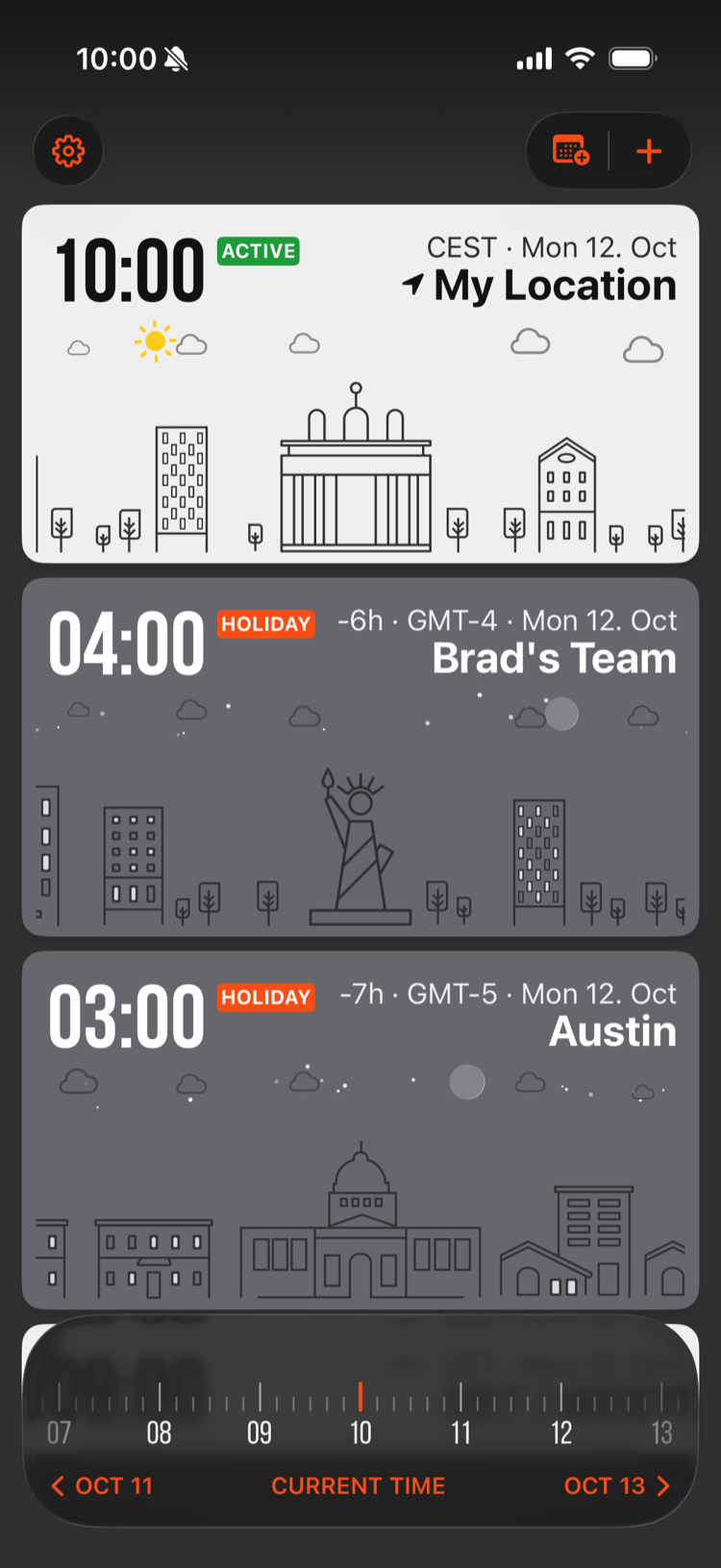
Check for public holidays
A HOLIDAY badge marks any city on a public holiday, for 240+ countries, including regional holidays in Germany, the US, Canada and Australia. Schedule an event on someone’s day off and the app asks first.
Questions
What is the easiest way to find a meeting time across three time zones?
Put all three locations on one timeline with their working hours. In GlobeTempus+ you add each city once, set its working days and hours, then swipe the timeline: the hours where every card shows ACTIVE are your overlap.
Does it account for daylight saving time?
Yes. Clock changes are applied automatically for every city, so the overlap stays correct when one location switches to or from daylight saving time and another does not.
Can I create the meeting from the app?
Yes. Your calendar events appear on the same timeline as the clocks, and you can create an event at the time you picked without leaving the app. Creating events is part of the full version.
Stop doing the timezone math.
Free to download with two locations, three people and one alarm. One purchase unlocks everything on iPhone, iPad and Mac.